Introduction
Connecting a CNC machine to a computer sounds straightforward until you're standing in front of a 1998 Fanuc control with no Ethernet port, a modern PC with no COM port, and a production job starting in two hours.
Connection complexity varies widely. Modern machines with Ethernet practically configure themselves. Legacy machines running RS-232 serial require adapters, driver installs, and parameter matching that must be exact — one baud rate mismatch and the control receives garbled characters or nothing at all.
Get it wrong and the consequences are immediate: programs drop mid-transfer, G-code corrupts, machines sit idle waiting for files that never arrive.
Even small shops lose significant time when operators walk USB drives back and forth across the floor instead of sending programs over the network.
This guide covers how to identify your machine's interface, choose the right connection method, configure your DNC software, and validate the link before it touches a live production program — so the connection works the first time.
Key Takeaways
- Match the connection method to the machine's physical interface—RS-232 for legacy controls, Ethernet or USB for newer ones
- DNC software manages program transfers; serial parameters (baud rate, parity, stop bits) must match exactly on both the PC and CNC control
- Wireless DNC adapters connect RS-232 ports to Wi-Fi, cutting cable runs across the shop floor
- Always test with a short, non-critical file before transferring production programs
- Once connected, that same link enables real-time machine monitoring and IIoT data collection
Before You Start: Identifying Your Machine's Interface
Find the Physical Port
Before touching any software, locate the communication port on the machine itself.
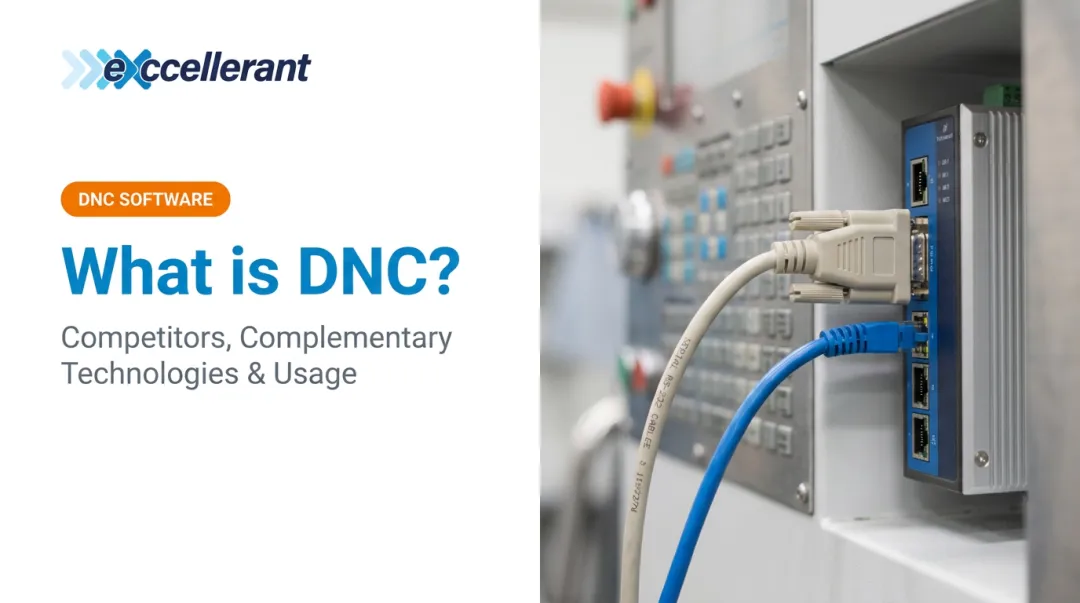
- Machines built before ~2005: Look for an RS-232 serial port—either a DB-9 (9-pin) or DB-25 (25-pin) D-shaped connector, usually on the control cabinet or operator panel
- Machines from the mid-2000s onward: Check for an RJ-45 Ethernet port or USB slot on the control panel
- Retrofitted machines: Previous owners may have added network cards or adapters not mentioned in the original documentation — don't assume the manual reflects current hardware
If you can't locate the port visually, check the machine's maintenance manual. Check the control brand and model number (typically on a label inside the control cabinet door) and look up the communication specifications for that specific control series. Once you've identified the port type, you're ready to confirm the details you'll need before attempting any connection.
What to Confirm Before You Start
Gather this information upfront:
- Control brand and model (Fanuc 16i, Haas NGC, Siemens 840D, Mitsubishi M800, etc.)
- Available communication ports: RS-232, Ethernet, USB, or a combination
- Whether the machine has a network card or requires an external adapter
- Current communication parameter settings — baud rate, parity, and stop bits (found in the CNC's I/O or communication settings menu)
Minimum Hardware Checklist
| Item | When Needed |
|---|---|
| DB-9 or DB-25 serial cable | RS-232 wired connection |
| USB-to-serial adapter | PC lacks a native COM port |
| CAT5e or CAT6 Ethernet cable | Ethernet-connected machines |
| Wireless DNC adapter | Legacy RS-232 machine, no cable run desired |
| Machine maintenance manual | Parameter lookup and port identification |
CNC-to-Computer Connection Methods
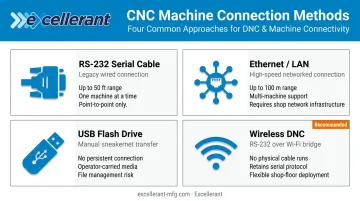
The connection method must match what the machine actually has. Here are the four options, in order of typical machine age.
RS-232 Serial Cable (Wired)
RS-232 is the legacy standard for CNC-to-computer communication, still found on the majority of machines built before 2005. It transfers data serially—one bit at a time—and is reliable over short distances. According to Eaton/Tripp Lite, RS-232 supports cable runs up to 15 m (50 ft) with data rates up to 20 Kbps at that maximum length.
Physical setup steps:
- Connect a DB-9 or DB-25 serial cable from the CNC's serial port to the PC's COM port
- If the PC has no COM port, plug in a USB-to-serial adapter and install its driver
- Open Windows Device Manager → Ports (COM & LPT) to confirm the adapter is recognized and note the assigned COM port number—you'll need this in the DNC software
One practical note: use the adapter manufacturer's driver, not the generic Windows auto-install. The generic version causes more COM port conflicts than anything else in this process.
Ethernet / LAN (Wired)
Ethernet is the preferred method for machines that support it. It's fast, bidirectional, and integrates the CNC into the shop's existing network infrastructure—allowing program files to be served from a central directory rather than loaded machine-by-machine.
Setup steps:
- Connect a CAT5e or CAT6 cable from the CNC's Ethernet port to a network switch (or directly to the PC for a point-to-point setup)
- Assign a static IP address to the machine control in the CNC's network settings menu
- Confirm the PC and machine are on the same subnet
- Run a ping test from the PC to the machine's IP address before opening any DNC software—if ping fails, the software won't connect either
Cat5e and Cat6 both support 1 Gb/s up to 100 m, which covers most shop floor cable runs comfortably.
USB Flash Drive
USB on most CNC machines means loading programs via a flash drive inserted into the control panel—not a persistent PC-to-machine network connection. It works but it's not DNC.
Setup steps:
- Format the flash drive to FAT32 (Haas NGC requires FAT32; some newer software versions also support exFAT—check your specific control version)
- Save the NC program with the correct file extension for the control
- Insert the drive into the CNC's USB port and use the machine's file browser to load or save programs
USB is fine for occasional transfers. For shops with frequent file changes or multiple machines, the time spent walking drives to machines adds up fast.
Wireless DNC (Wi-Fi)
Wireless DNC adapters bridge the RS-232 port of a legacy machine to the shop's Wi-Fi network. On the PC side, a virtual COM port driver makes the wireless connection appear identical to a wired serial connection—the DNC software doesn't know the difference.
Configuration process:
- Connect the serial-to-Wi-Fi adapter to the CNC's RS-232 port
- Power on the adapter and access its web-based configuration interface (typically via a browser pointed at the adapter's default IP)
- Join the shop's Wi-Fi network and configure serial parameters to match the CNC control
- Install the virtual COM port driver on the PC
- Configure DNC software to use the new virtual COM port
This approach was pioneered in 2001, when Excellerant's founder developed the world's first wireless DNC connection to a machine tool — solving a real problem for shops that needed machine connectivity without the cost and disruption of running cables across the floor. Excellerant's wireless DNC solutions are built specifically for shop environments and support machines of any brand or age.
Configuring DNC Software and Communication Settings
The physical cable or adapter is only half the work. Every serial communication parameter must match exactly between the DNC software and the CNC control. One mismatch—even just the wrong parity setting—and the machine will reject incoming data or display garbled characters.
Serial Parameters to Match
Find these values in the CNC's I/O or communication parameter settings, then enter them identically in the DNC software:
| Parameter | Common Values | Notes |
|---|---|---|
| Baud rate | 2400, 4800, 9600, 19200 | Must match exactly |
| Data bits | 7 or 8 | Control-dependent |
| Parity | None, Even, Odd | Control-dependent |
| Stop bits | 1 or 2 | Control-dependent |
| Handshaking | None, Hardware, Software (XON/XOFF) | Often the source of stalled transfers |
For Fanuc controls, baud rate is set via parameter P0103 (for 16i/18i/21i series); value 10 = 4800 baud, value 11 = 9600 baud. Parameter numbers are control-series-specific—always verify in your machine's documentation.
Siemens controls have their own quirk worth flagging: the SINUMERIK 840Dsl HMI only supports COM1 and COM2 for serial communication. If your USB-to-serial adapter gets assigned COM3 or higher, the connection will fail. Reassign it manually in Device Manager before troubleshooting anything else.
DNC Software Setup Steps
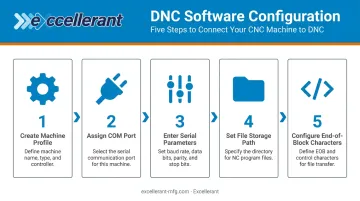
- Open the DNC software and create a new machine profile
- Assign the correct COM port (wired or virtual wireless)
- Enter all serial parameters to match the CNC's settings exactly
- Set the file storage path for NC programs
- Configure end-of-block and end-of-program characters as required by the specific control brand
Ethernet-Connected Machines
For Ethernet setups, skip the COM port settings entirely. Instead, enter the machine's static IP address and the port number the control listens on. Some manufacturers provide their own transfer utilities—Fanuc has the Program Transfer Tool, Haas has built-in networking for NGC machines. Both work reliably within their own ecosystems, but they don't communicate across brands.
For mixed-machine environments, a dedicated multi-machine DNC platform like Excellerant's is worth considering. It handles Fanuc FOCAS, Haas MNET, Mazak Mazatrol, MTConnect, and OPC-UA from a single interface, with revision tracking and per-machine event logging built in.
Common Connection Problems and Fixes
Even with correct hardware and software, three issues come up most often: baud rate mismatches, unrecognized COM ports, and wireless signal drops. Here's how to diagnose and fix each one.
Baud Rate or Parameter Mismatch
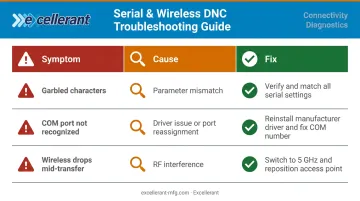
Symptom: Machine receives garbled characters, displays a communication error, or transfer stalls after a few lines.
Cause: One or more serial parameters don't match between the PC software and the CNC's I/O settings.
Fix:
- Open the CNC control's parameter menu and record every communication value
- Compare each setting against the DNC software configuration
- Correct any discrepancy in baud rate, data bits, stop bits, or parity
- Re-test with a 10-line file before loading anything longer
COM Port Not Recognized
Symptom: DNC software can't find the COM port; Device Manager shows a yellow warning icon next to the USB-to-serial adapter, or the port number changes after reboot.
Cause: Driver not installed correctly, or Windows reassigning the COM port number on restart.
Fix:
- Uninstall the adapter driver and reinstall using the manufacturer's latest version (not Windows auto-install)
- In Device Manager, right-click the adapter → Properties → Port Settings → Advanced → assign a fixed COM port number (COM3 works for most setups; COM1/COM2 if using Siemens 840Dsl)
Wireless Signal Drops Mid-Transfer
Symptom: Wireless DNC adapter connects initially but loses connection during transfer, resulting in incomplete program uploads.
Cause: Shop floor RF interference or insufficient signal strength. Ekahau's research confirms that 2.4 GHz is particularly susceptible to non-Wi-Fi interference—switching to 5 GHz significantly reduces this problem.
Fix:
- Position a dedicated Wi-Fi access point closer to the machine group
- Switch to 5 GHz band in areas with high 2.4 GHz congestion
- Confirm the adapter's serial buffer can handle the full program length
- Update the adapter firmware if it's outdated
Pro Tips for a Stable, Long-Term CNC Network
Three practices separate shops that maintain reliable CNC connections long-term from those that spend hours troubleshooting recurring problems:
Document Every Communication Setting
Record all COM port assignments, IP addresses, baud rates, and DNC software version numbers for every connected machine in a central log. When a setting gets accidentally changed—and it will—having that reference saves hours of guesswork.
Plan for Scale Before You Add Machines
Connecting three or more machines? Use a centralized DNC server or platform instead of individual PC-to-machine setups. Centralized management enforces revision control and lets any machine pull from one shared program library. Excellerant's platform, for example, supports unlimited client access with no per-seat licensing fees — so adding machines over time doesn't mean escalating software costs.
Know When to Bring In a Specialist
Legacy machines with non-standard control configurations, heavily customized parameter sets, or proprietary communication formats often require specialist knowledge for initial setup. Forcing communication without understanding those configurations risks corrupting machine parameters — a problem that can require full control re-initialization to resolve. That's a much larger repair than the original connection challenge.
Frequently Asked Questions
What are the communication protocols for CNC machines?
The most common are RS-232 (serial, legacy standard), Ethernet/TCP-IP (modern, high-speed, networked), USB (direct file transfer via flash drive), and MTConnect (an open standard used on more than 250,000 devices across 50+ countries for real-time machine data streaming). The right protocol depends on the machine's age and control type.
What is DNC software and do I need it?
DNC (Direct Numerical Control) software manages G-code transfers between a computer and CNC machines, handling port configuration, handshaking, and file queuing. It's required for RS-232 and wireless DNC connections, and strongly recommended for multi-machine Ethernet setups to centralize program management and revision control.
Can I connect an older CNC machine (20+ years old) to a modern computer?
Yes. Legacy machines with RS-232 ports connect using a USB-to-serial adapter and DNC software, or upgrade to wireless using a serial-to-Wi-Fi adapter—no control replacement required. The key is matching the exact communication parameters the old control expects.
What is the difference between RS-232 and Ethernet for CNC?
RS-232 is a slower, point-to-point serial connection limited to around 50 ft, suited to one machine at a time. Ethernet supports high-speed, networked communication that integrates CNCs into a LAN for centralized file management across multiple machines simultaneously.
How do I test if my CNC machine is successfully connected?
Send a short G-code file (10–20 lines) from the PC while the machine is in receive mode. Confirm the control displays the program without errors. If the machine supports send-back, attempt that too—bidirectional confirmation before running production programs.
What is wireless DNC and when should I use it?
Wireless DNC uses a serial-to-Wi-Fi adapter to give a legacy RS-232 machine network connectivity without running physical cables. It's most practical in large facilities where cable runs across the shop floor are impractical or too disruptive to retrofit.