This guide is written for shop managers, CNC operators, maintenance technicians, and IT staff who need to connect machines for program transfer, real-time monitoring, or shop-floor data collection. Done correctly, networking eliminates manual program loading, reduces downtime, and gives you visibility into every machine on the floor. Done incorrectly, it produces communication failures, wrong program revisions reaching machines, and security exposures that put your entire operation at risk.
What follows covers everything from protocol selection and hardware requirements through step-by-step configuration, troubleshooting, and security best practices.
Key Takeaways
- Connection method (RS-232, Ethernet, or wireless) depends on your controller's age and available interface; no single approach works for every machine
- Serial parameters must match exactly between the CNC controller and the DNC server, or communication will fail
- Legacy RS-232 machines can join a modern network using serial-to-Ethernet converters or wireless serial adapters
- DNC software is not optional: hardware alone cannot manage program versions, access control, or multi-machine transfers
- CNC machines need a segmented, access-controlled network — connecting them directly to your corporate network creates serious security exposure
Understanding CNC Machine Networking: Protocols and Connection Types
In practical terms, CNC machine networking means linking your machines to a central server or shop network so they can receive NC programs, transmit machine data, and be monitored remotely. The payoff is real: eliminated manual program loading, live visibility into machine utilization, and a documented transfer history that supports quality audits.
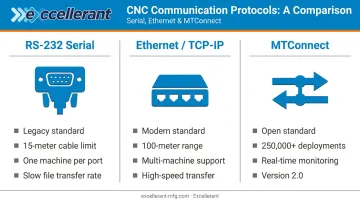
The Three Core Protocols
Production shops typically work with some combination of these:
- RS-232 serial — the legacy standard, still dominant in older controllers. Reliable within its limits (~15 meters / 50 ft per Campbell Scientific's application guidelines), but single-ended signaling makes it more susceptible to electrical noise than differential standards. One machine per port, and transfer speeds are slow by modern standards.
- Ethernet/TCP-IP — standard on modern CNCs. Higher speed, supports multiple machines through a switch, and suitable for large program files and real-time data streaming. Cat5e and Cat6 both support 1 Gbps over 100 meters of copper.
- MTConnect — an open, royalty-free standard developed by AMT for machine monitoring and data exchange. MTConnect is now deployed on more than 250,000 devices across 50+ countries, with Version 2.0 released in 2022 covering maintenance data, part counts, operational modes, and more.
Controller Brands and Their Protocols
FANUC, Haas, Mazak, and Siemens each use proprietary parameter structures that affect how connections are configured. Excellerant's platform handles all four through dedicated protocol connectors:
| Controller | Protocol Connector |
|---|---|
| FANUC | FANUC FOCAS |
| Haas | HAAS MNET |
| Mazak | Mazak Mazatrol |
| Siemens / standards-based | MTConnect, OPC-UA |
Wireless and the Mixed-Fleet Reality
Serial-to-WiFi adapters bridge legacy RS-232 machines onto a wireless network without rewiring. Modern controllers with native WiFi connect directly to the shop's access point. Excellerant's founder John Carpenter developed the world's first wireless DNC connection to a machine tool in 2001 — in partnership with Comtrol Corporation and Enterasys Networks — a milestone that earned a front-cover feature in Modern Machine Shop in 2006. Wireless DNC has been a proven production option for over two decades.
That wireless capability is only part of the picture. Most production shops run machines from multiple eras: some RS-232 only, some Ethernet, some both. A complete networking solution has to accommodate all of them simultaneously. Excellerant has spent 30 years connecting exactly these environments: 20-, 30-, and 40-year-old machines running alongside new CNCs on one unified platform.
Prerequisites and Hardware Requirements
Before connecting any CNC machine to a network, two things need to be in place: a prepared network infrastructure and a confirmed understanding of each machine's communication interface. Skipping either step is the most common source of failed or unstable connections.
Network Infrastructure Readiness
Before connecting anything:
- Deploy a managed switch and confirm the Ethernet network is active
- Plan and install industrial-grade WiFi access points if wireless networking is in scope — conduct a site survey first, not after machines are connected
- Assign static IP addresses to each machine; DHCP creates unnecessary risk of address conflicts and communication failures in machine-tool environments
- Create a dedicated VLAN or subnet for CNC machines, separate from office and internet-connected devices (more on this in the security section)
Checking Your Machine's Interface
Locate the controller's documentation and confirm:
- Available ports: RS-232 (DB-9 or DB-25 connector), Ethernet (RJ-45), or USB
- Supported baud rates and whether the controller supports MDI receive, background editing, or bi-directional DNC
On Haas controllers, for example, the relevant RS-232 settings live at Setting 11 (baud rate), Setting 12 (parity), Setting 13 (stop bits), and Setting 14 (synchronization such as XON/XOFF or RTS/CTS).
If a machine has no documented communication port, network connectivity may require a hardware retrofit. Do not connect serial adapters to undocumented ports or use pinouts from unverified sources — incorrect wiring can damage the controller.
Once you've confirmed which port type each machine uses, you can select the right cables and adapters. Here's what each connection type requires.
Hardware Checklist
For RS-232 connections:
- Shielded null-modem serial cable with the correct connector for the controller
- USB-to-serial adapter if the DNC server has no physical COM port
- Serial device server or serial-to-Ethernet converter for multi-machine setups
For Ethernet connections:
- CAT5e or CAT6 patch cable from the machine to the shop network switch
- Managed switch port on the CNC network segment
For wireless connections:
- Industrial-grade serial-to-WiFi adapter compatible with RS-232 voltage levels
- Adapter must support WPA2 minimum for network security
- Access point positioned away from high-EMI equipment (spindle motors, VFDs, fluorescent lighting)
How to Network Your CNC Machines: Step-by-Step
CNC machine networking follows a defined sequence. Skipping steps or reordering them is the most common cause of failed setups.
Step 1: Prepare the Network Infrastructure
Set up the dedicated CNC network segment first. Install and test the managed switch and access points before connecting any machines. Confirm static IP assignments are reserved in the network schema.
Step 2: Connect the Hardware
- RS-232: Run the serial cable from the machine's RS-232 port to the DNC server's COM port or to a serial device server connected to the network switch
- Ethernet: Run CAT5e or CAT6 from the machine's Ethernet port to the CNC network switch
- Wireless: Connect the serial-to-WiFi adapter to the machine's RS-232 port, power it on, and configure it via its web interface to join the designated CNC network SSID
Step 3: Configure the DNC Software
Install DNC software on the designated server. For each machine, create a machine entry with:
- COM port (serial) or IP address and port number (Ethernet/wireless)
- Baud rate, data bits, parity, stop bits, and handshaking — all matching the controller's parameter list exactly
- Program storage directory and file naming conventions appropriate for the controller brand
Excellerant's DNC platform is built specifically for shop-floor environments. A single server install supports simultaneous send, receive, and drip-feed to multiple machines. It also includes an in-browser G-code editor with one-click revision compare, per-machine event logging, and Active Directory integration for access control.
Step 4: Configure the CNC Controller
The controller configuration mirrors what you set in the DNC software — both sides must match exactly. Access the machine's communication parameters (typically under Setup, Parameters, or I/O depending on the controller) and enter:
- Baud rate, parity, and stop bits matching the DNC software configuration
- IP address, subnet mask, and gateway (for Ethernet machines)
- DNC receive mode or background editing settings as required by the transfer method
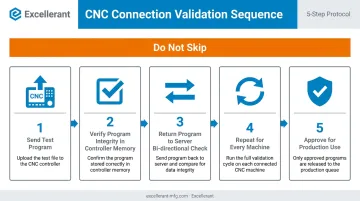
Step 5: Test and Validate
Do not skip this step.
- Send a small, known-good test program from the DNC server to the machine
- Confirm it appears correctly in the controller's memory without character substitution or corruption
- Send the program back from the machine to the server (bi-directional check)
- Repeat for every machine before considering the setup complete
- Only use the network connection for production after this validation passes cleanly
Common CNC Networking Problems and How to Fix Them
Issue 1: No Data Transfer or Communication Timeout
Symptom: DNC software reports a connection timeout; the controller shows no incoming data.
Likely cause: Mismatched serial parameters — baud rate is the most frequent culprit, but parity and stop bits cause failures just as often. A null-modem versus straight-through cable mismatch can trigger the same error.
Fix: Cross-reference these parameters in both the DNC software and the CNC controller parameter list — they must be identical:
- Baud rate
- Data bits
- Parity
- Stop bits
- Handshaking
Then verify the cable type. If in doubt, swap it.
Issue 2: Intermittent Wireless Dropout During Program Transfer
Symptom: Wireless DNC connection drops mid-transfer, producing a corrupted or incomplete program in the controller.
Likely cause: RF interference from spindle motors, variable frequency drives (VFDs), or fluorescent lighting near the access point or adapter. NIST's industrial wireless research identifies interference resilience as a core challenge in manufacturing environments. NIST's 2024 work on TIG-welding interference confirms that industrial processes can noticeably degrade 802.11 performance.
Fix:
- Relocate the access point away from high-EMI equipment
- Use industrial-grade adapters rated for shop-floor environments
- Conduct a wireless site survey before finalizing access point placement — test in the actual production cell, not in an office
Issue 3: Machine Accessible to Unauthorized Users
Symptom: The CNC controller responds to network traffic not initiated by the operator, or any network user can browse the controller.
Likely cause: Default passwords left in place and no network segmentation applied.
Fix: Change all default passwords immediately. Enable controller authentication if supported. Restrict network access with firewall rules so only the designated DNC server can communicate with CNC machines. Place machines on an isolated network segment with no direct path to the internet.
Best Practices for Secure and Reliable CNC Machine Networking
Segment the CNC Network
CNC machines should never share a flat network with general office devices or internet-connected systems. CISA's ICS best-practices guidance explicitly warns that eliminating segmentation between ICS and business IT increases access to critical systems. NIST SP 800-82 Rev. 3 provides the broader OT security framework.
A dedicated VLAN with firewall rules allowing only the DNC server to initiate communication with machine controllers closes off the most common attack vectors. For defense contractors, this architecture supports CMMC 2.0 and NIST 800-171 access control requirements.
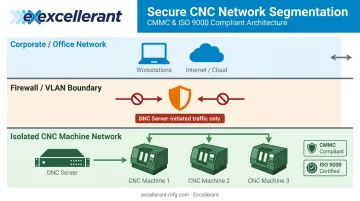
Excellerant's platform is built for this architecture. Key controls for IT and compliance teams include:
- On-premise deployment options
- Customizable user permissions and Active Directory integration
- Per-machine event logging for ISO 9000 and CMMC-regulated environments
Document Everything and Label All Connections
For every machine on the network, record:
- IP address or COM port assignment
- Baud rate and serial parameters
- DNC software configuration
- Cable routing and network port on the switch
Label every cable at both ends. In a multi-machine shop, undocumented setups create troubleshooting nightmares and become a liability when staff turns over.
Use DNC Software With Revision Control
Sending the wrong NC program revision to a machine can cause scrap, rework, and machine time loss — especially when raw material costs are high or prior operations have already been performed on a part. A proper DNC system with built-in version control ensures operators always load the approved revision.
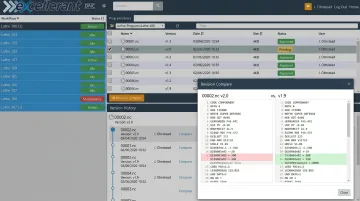
One-click revision compare lets programmers immediately identify what changed between versions. Excellerant's optional Rev-Lock-Load feature goes further: each machine is limited to a single program request, and that program must be returned to the server before a new one can be accessed. This enforces one-program-per-machine compliance for quality-regulated shops.
Schedule Regular Audits
Connectivity that worked at setup will degrade without maintenance:
- Periodically verify all machine connections are active
- Update firmware on serial adapters and wireless devices to close known vulnerabilities
- Review DNC access logs to catch unauthorized activity early
- Re-validate serial parameters after any controller service or firmware update
Frequently Asked Questions
What does CNC stand for in networking?
CNC stands for Computer Numerical Control. In a networking context, it refers to connecting CNC machine tools to a computer network so they can receive NC programs, transmit machine data, and be monitored or managed remotely from a central system.
What are the most common types of CNC machines?
The most common types include CNC mills, CNC lathes and turning centers, CNC routers, CNC plasma and laser cutters, and CNC grinders. Each may use a different controller brand — FANUC, Haas, Mazak, or Siemens — with its own communication parameters.
What is DNC in CNC networking?
DNC (Direct Numerical Control) is the method of transferring NC programs from a central computer to one or more CNC machines over a network connection. It replaces manual program loading via memory cards or individual RS-232 cable transfers and forms the foundation for shop-floor program management.
Can older CNC machines be networked?
Yes. Legacy machines with only RS-232 ports can be networked using serial-to-Ethernet converters or wireless serial adapters, allowing them to participate alongside modern Ethernet-connected machines on the same DNC or monitoring network. Platforms like Excellerant support RS-232 serial machines, behind-the-tape-reader machines, and other legacy controls within a unified network.
What is the most common communication protocol for CNC machines?
RS-232 remains the most widespread protocol in legacy machine fleets. Ethernet/TCP-IP is standard on modern controllers. MTConnect has gained wide adoption as an open standard for machine monitoring and data exchange across multiple brands, now deployed on more than 250,000 devices worldwide.
How do I secure a networked CNC machine?
Start by isolating CNC machines on a dedicated, firewalled network segment with access restricted to the authorized DNC server. Change all default controller passwords and keep firmware and software updated. Defense and quality-regulated shops should choose DNC platforms with access logging, user authentication, and revision control to satisfy CMMC and ISO 9000 requirements.