This guide is written for technicians, controls engineers, and integration teams who already know their way around a CNC. If your shop lacks in-house CNC networking expertise, the realistic path is engaging a specialist integrator before touching any settings.
Here's what this guide covers: choosing between MTConnect and FOCAS, confirming your prerequisites, and completing both configurations correctly.
Key Takeaways
- FANUC FOCAS is a proprietary DLL-based protocol that pulls data directly from FANUC controls via Ethernet or HSSB, reaching deeper than MTConnect alone
- MTConnect is an open standard that outputs structured XML over HTTP, readable by any compatible monitoring software
- Both protocols require a static IP, subnet mask, gateway, and open TCP port 8193 on the CNC
- FOCAS requires an active, licensed Ethernet option on the control — older or base-level machines may need paid activation
- Most misconfigurations trace to DHCP left enabled, the wrong FOCAS library version (FOCAS1 vs. FOCAS2), or an unlicensed Ethernet option
MTConnect vs. FANUC FOCAS: Choosing Your Protocol
These two protocols solve different problems. Choosing the wrong one won't stop machines from running, but it adds integration complexity that compounds over time.
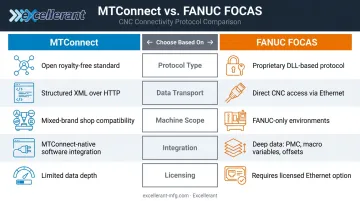
MTConnect is an open, royalty-free standard developed by AMT for interoperability between manufacturing devices and software over IP. It outputs machine observations — AVAILABILITY, EXECUTION, SPINDLE_SPEED, PROGRAM — as structured XML via HTTP. Any compatible software platform can consume it without FANUC-specific libraries. That makes it the right choice when connecting mixed-brand equipment or when your monitoring software is already MTConnect-native.
FANUC FOCAS (FANUC Open CNC API Specification) is the direct-access method for FANUC controls. According to FANUC America, FOCAS2 exposes controlled axes and spindle data, tool life management, CNC file data, servo and spindle diagnostics, macro variables, and PMC data. That's a level of granularity MTConnect's semantic model doesn't natively reach.
When you need tool offsets, macro variables, or PMC register values, FOCAS is the path.
When to Use Each
| Scenario | Recommended Protocol |
|---|---|
| Mixed-brand shop (FANUC + Mazak + Haas) | MTConnect |
| FANUC-only shop, deep data needed | FANUC FOCAS |
| Downstream software is MTConnect-native | MTConnect |
| Need PMC data, macro variables, offsets | FANUC FOCAS |
| Both available (for example, some DMG Mori configurations) | Choose based on downstream software |
Some Mori Seiki and DMG Mori machines with FANUC controls offer separate Ethernet ports for each protocol. In those cases, the decision is purely about what your monitoring system expects.
Prerequisites and Compatibility Checks
Don't skip this section. Most failed FOCAS deployments trace back to assumptions made here.
Identify Your Control and Library Version
The FANUC control model determines two things: whether the Ethernet option is already active or needs purchasing, and which FOCAS library version applies.
- FOCAS1: Legacy controls — 0i-A, 0i-B/C, 16i/18i/21i-B class (the 16i/18i/21i-B series supports FOCAS1/Ethernet per FANUC documentation; note that FS21i-B is excluded from embedded Ethernet)
- FOCAS2: Modern controls — 0i-D, 30i/31i/32i/35i class (FANUC 0i-D and 30i Ethernet documentation defines FOCAS2/Ethernet TCP port fields)
Verify against your exact control's maintenance manual — these are not universal rules across every OEM machine build.
Network Readiness
Before assigning any addresses, confirm:
- The CNC has a physical Ethernet port (embedded on the NCU board or a separate Data Server board)
- The collecting PC or gateway is on the same network subnet as the CNC
- DHCP is disabled — FANUC documentation notes that if a DHCP server cannot be reached,
DHCP ERRORis displayed; DHCP means the CNC's IP changes on restart, silently breaking data collection
FOCAS Option Verification
On the FANUC control, navigate to System → ETHPRM or the EMBED PORT screen and confirm the Ethernet Board option and FOCAS2/Ethernet parameters are active. If they're not listed or enabled, the option isn't licensed.
Pricing for FOCAS Ethernet option activation isn't published publicly by FANUC — MachineMetrics directs users to contact FANUC or the machine vendor directly for pricing, which varies by control model, OEM configuration, and region. Confirm pricing before setting a project timeline — costs vary by control model, OEM configuration, and region.
Applicable FANUC Control Models
| Control Family | FOCAS Support Status |
|---|---|
| 16i-B, 18i-B, 21i-B | Embedded Ethernet/FOCAS1 supported (verify FS21i-B and OEM build) |
| 30i/31i/32i | FOCAS2/Ethernet standard; verify exact variant |
| 0i-D | FOCAS2/Ethernet when Ethernet function is present and enabled |
| 0i-B, 0i-F | Verify by machine serial number and control option list |
| 0i-A, 16i-A, 18i-A | May require Data Server Board retrofit via FANUC |
Shops without in-house CNC networking expertise should confirm compatibility before purchasing licenses or hardware. That's where a connectivity partner with cross-protocol experience helps. Excellerant has connected machines across hundreds of plants since 1991 and supports FOCAS, MTConnect, OPC-UA, HAAS MNET, and Mazak Mazatrol.
How to Configure FANUC FOCAS: Step-by-Step
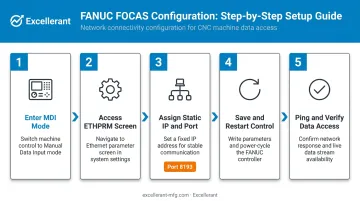
FOCAS configuration happens inside the FANUC control's system parameter screens. The sequence: access Ethernet parameters → assign static IP → set TCP port → restart → verify connectivity → confirm data access.
Setting the Ethernet Parameters on the Control
- Enter MDI mode on the FANUC control
- Press the SYSTEM hard key, then use the right soft key (+) to navigate to
ETHPRM,EMBED PORT, orETHER BOARD(label varies by control generation) - Assign static network settings:
- IP Address: e.g.,
192.168.1.10 - Subnet Mask: e.g.,
255.255.255.0 - Default Gateway: e.g.,
192.168.1.1(only needed if routing across subnets)
- IP Address: e.g.,
- Set TCP Port to 8193 — this is the standard FOCAS port. The valid input range per FANUC 0i-D documentation is 5001–65535; if the field shows
0, it must be changed before the connection will work. Set UDP Port to0and TIME INTERVAL to0. - Save and perform a full control restart
After reboot, ping the assigned IP from the collecting PC. If ping fails, check:
- DHCP is actually disabled (re-enter the ETHPRM screen to confirm)
- The PC and CNC are on the same subnet
- FANUC parameter that controls external data access (verify against your specific control's parameter manual — the exact parameter number varies by control series)
- PC-side firewall rules blocking ICMP or port 8193
Confirming FOCAS Data Access
Once ping succeeds, install a FOCAS-compatible application or MTConnect adapter on the collecting PC. Two common options:
- FANUC FASMTC — FANUC's proprietary adapter
- Fanuc-MTConnect-Agent by TrakHound — open-source, supports 0i-D and 30i controllers over FOCAS/Ethernet
Point the application at the CNC's IP on port 8193. A successful connection returns CNC state, spindle speed, program name, and alarm status.
If it connects but returns no data or an EW_SOCKET error, check the FOCAS library version first. FOCAS1 called against a 30i-series machine won't work. Cross-reference your control model against the FOCAS1/FOCAS2 split and switch the library in the adapter software.
How to Configure MTConnect: Step-by-Step
MTConnect configuration depends on one question: does the machine have a native MTConnect port, or does it require an external adapter?
Configuring a Native MTConnect Port (e.g., Mori Seiki)
Machines with a dedicated MTConnect Ethernet port (typically separate from the FANUC NCU port, routed through the HMI) follow this path:
- Press the COMM SETTING softkey on the HMI
- Navigate to NETWORK BASIC SETTING
- Enter IP, Subnet, and Gateway values
- Disable DHCP
- Reset the control and confirm the IP is reachable via ping from the collecting PC
Configuring MTConnect via an Adapter on an Edge PC
For machines without a native MTConnect port, deploy an adapter on an industrial PC connected to the CNC via Ethernet. The adapter reads from FOCAS and translates machine data into MTConnect's structured XML.
Options include FANUC's FASMTC — FANUC America describes this as sending CNC data to the PC where FASMTC is installed via FOCAS over standard Ethernet — or an open-source equivalent.
With the adapter deployed, verify the data stream is live before treating the setup as complete:
- Open a browser on the same network
- Navigate to
http://[agent-IP]:[port]/current(port 5000 appears in official MTConnect documentation examples, though the actual port must match your agent's configuration) - The response should return XML with AVAILABILITY, EXECUTION, SPINDLE_SPEED, and PROGRAM values
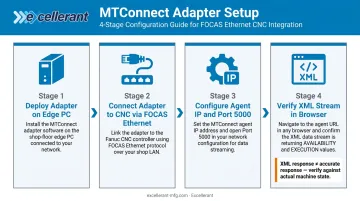
Confirm these values match the machine's actual state before calling the setup complete. An XML response that returns data isn't the same as an accurate XML response.
Common Configuration Problems and Fixes
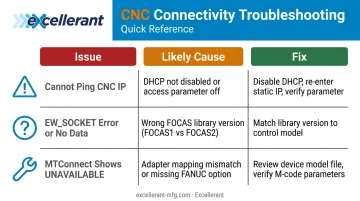
Issue 1: Cannot Ping the CNC IP After Configuration
Symptom: Ping from the collecting PC fails after assigning an IP and restarting.
Likely causes:
- DHCP was not disabled before saving — the control reverts to a dynamic IP on restart
- External data access parameter not enabled (verify against your control's parameter manual)
- Physical cable or switch not connected
Fix: Re-enter ETHPRM, confirm DHCP is off, re-enter static IP settings, verify the external access parameter per your control's manual, restart the control, and confirm both devices are on the same subnet.
Issue 2: FOCAS Connects but Returns No Data or EW_SOCKET Error
Symptom: The adapter reaches port 8193 but returns empty data or EW_SOCKET (-16).
Likely causes:
- Wrong FOCAS library version (FOCAS1 used against a 30i/31i machine requiring FOCAS2)
- FOCAS Ethernet option listed in the control but not fully licensed
Fix: Confirm the control model, verify which FOCAS version your control requires, and switch the library in the adapter software. If licensing is the issue, contact FANUC or the machine builder to confirm what's licensed.
Issue 3: MTConnect XML Shows "UNAVAILABLE" for Key Data Points
Symptom: The agent responds with XML, but spindle speed, part count, or alarm status show UNAVAILABLE.
MTConnect Part 1 documentation specifies that when a data source is unavailable, all associated data items must carry the value UNAVAILABLE. This isn't always a configuration failure — it may mean the machine is not providing that data at all.
Likely causes:
- Adapter not mapped to the correct FOCAS data elements for that specific control
- Certain data requires additional FANUC options (part count, for example, may depend on M-code parameter configuration or PMC/macro logic)
Fix: Review the adapter's device model file and confirm data element mappings match the available data on your specific FANUC control. For part count, verify M-code parameters are correctly configured on the control.
Pro Tips for a Reliable Setup
Record IP address, subnet, gateway, TCP port, control model, and FOCAS library version before and after every configuration change. That documentation is what gets you back online quickly after a maintenance restart — or when you're adding machines to a growing network.
In shops with multiple FANUC control generations, validate each machine individually. A single wrong library version silently stops data collection for that machine — no error message, no alert.
For mixed-brand shops, managing separate adapters per machine type adds up fast. Excellerant's platform supports MTConnect, FOCAS, OPC-UA, HAAS MNET, and Mazak Mazatrol in one unified environment, eliminating separate configurations for each protocol or brand.
Frequently Asked Questions
What is the FANUC FOCAS protocol?
FANUC FOCAS (FANUC Open CNC API Specification) is FANUC's proprietary protocol that uses DLL library files to give software direct access to CNC data via Ethernet or HSSB. It exposes machine state, spindle speed, alarm codes, tool offsets, macro variables, and PMC data from FANUC controls.
What is MTConnect?
MTConnect is an open manufacturing industry standard that enables CNC machines and other shop floor equipment to output data in structured XML over HTTP. Any compatible software can consume it, making it the preferred choice for standardizing data across multi-brand machine environments.
Can MTConnect and FANUC FOCAS be used on the same machine?
Yes. On certain machines — such as some DMG Mori and Mori Seiki configurations with FANUC controls — both protocols are available through separate Ethernet ports. One connects to the FANUC NCU for FOCAS; the other connects through the HMI for MTConnect. The choice depends on what your downstream software requires.
What TCP port does FANUC FOCAS use?
FOCAS communicates over TCP port 8193 by default, with a valid range of 5001–65535 per FANUC documentation. This must be set in the control's Ethernet parameter screen and matched in your collecting software. If the port shows 0, change it manually before attempting a connection.
What data can I collect using FANUC FOCAS?
FOCAS exposes CNC state, program name and number, spindle speed, feed rate overrides, tool and work offsets, alarm codes, positional data, macro variables, and PMC data. Part count access depends on control-specific configuration and may require PMC or macro logic.
Do I need to purchase a license to use FANUC FOCAS?
FOCAS requires the Ethernet option to be active on the control — on older or base-level machines, this may need to be purchased through FANUC or an authorized dealer. Pricing varies by control model, OEM configuration, and region, so contact FANUC or your machine builder for an accurate figure before budgeting.